
AI Real Estate Video from a Photo
Create a 5-second clip with a gentle push-in or pan from a single photo. Best for social teasers, not as a replacement for a real walkthrough.
Usually ~120s. Sign in for 3 welcome credits. Credits per result: 3.
View credit packs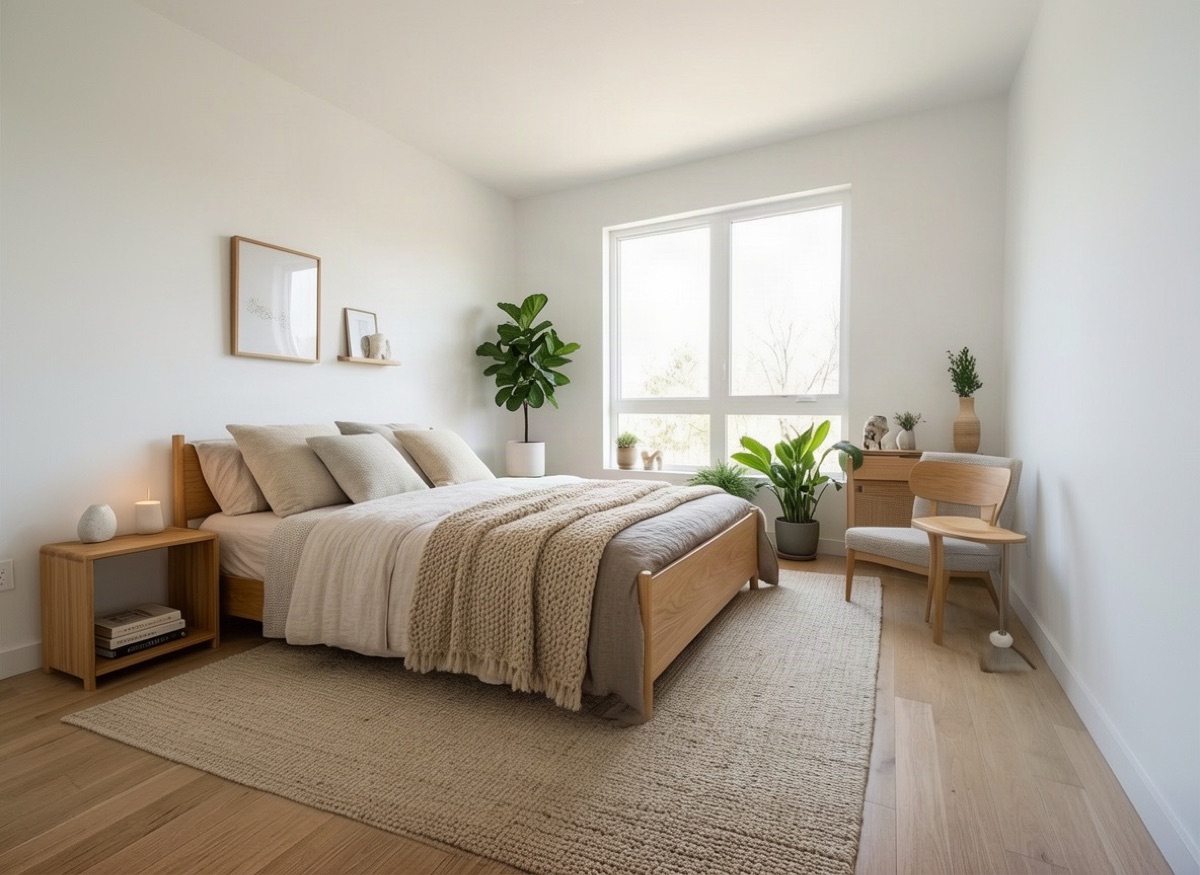 PhotoVideo
Sample with your current settings (Slow push-in). The original is an AI-generated demo room.
Best for: Agents, marketers, short-term rental hosts
More Photo to Video examples
Drag each slider to compare. These are AI-generated demo scenes, not customer properties. Review the changes and settings before trying your own photo.
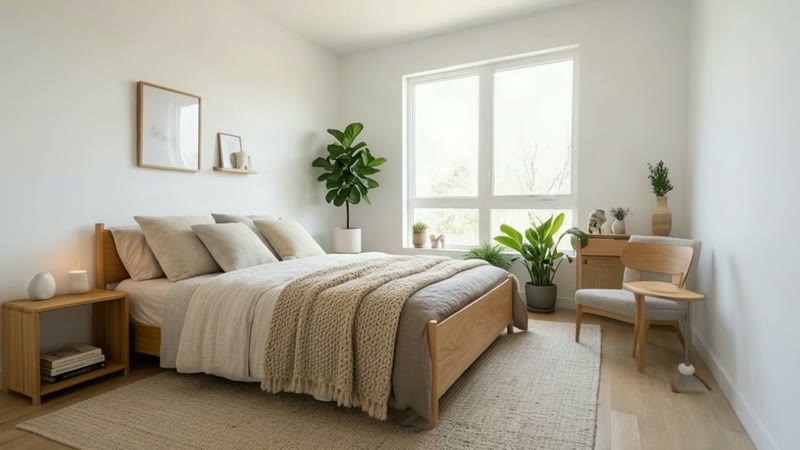 PhotoVideo frame
Bedroom photo with a slow push-in
Watch bed edges and window frames throughout the generated clip.
Settings: Slow push-in
Use this example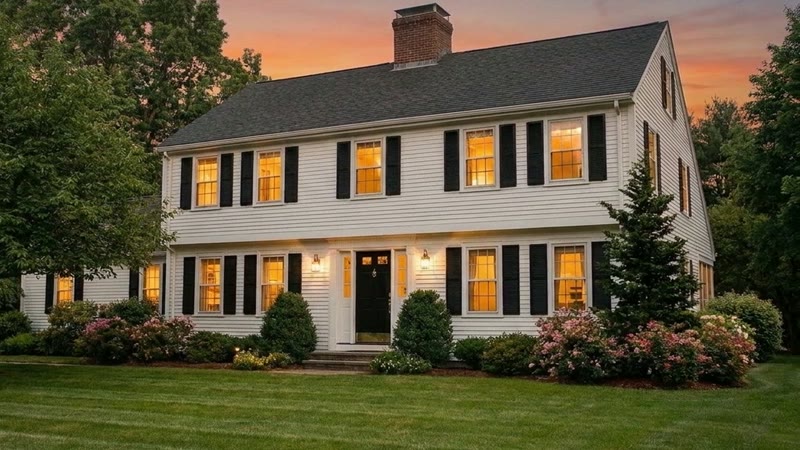
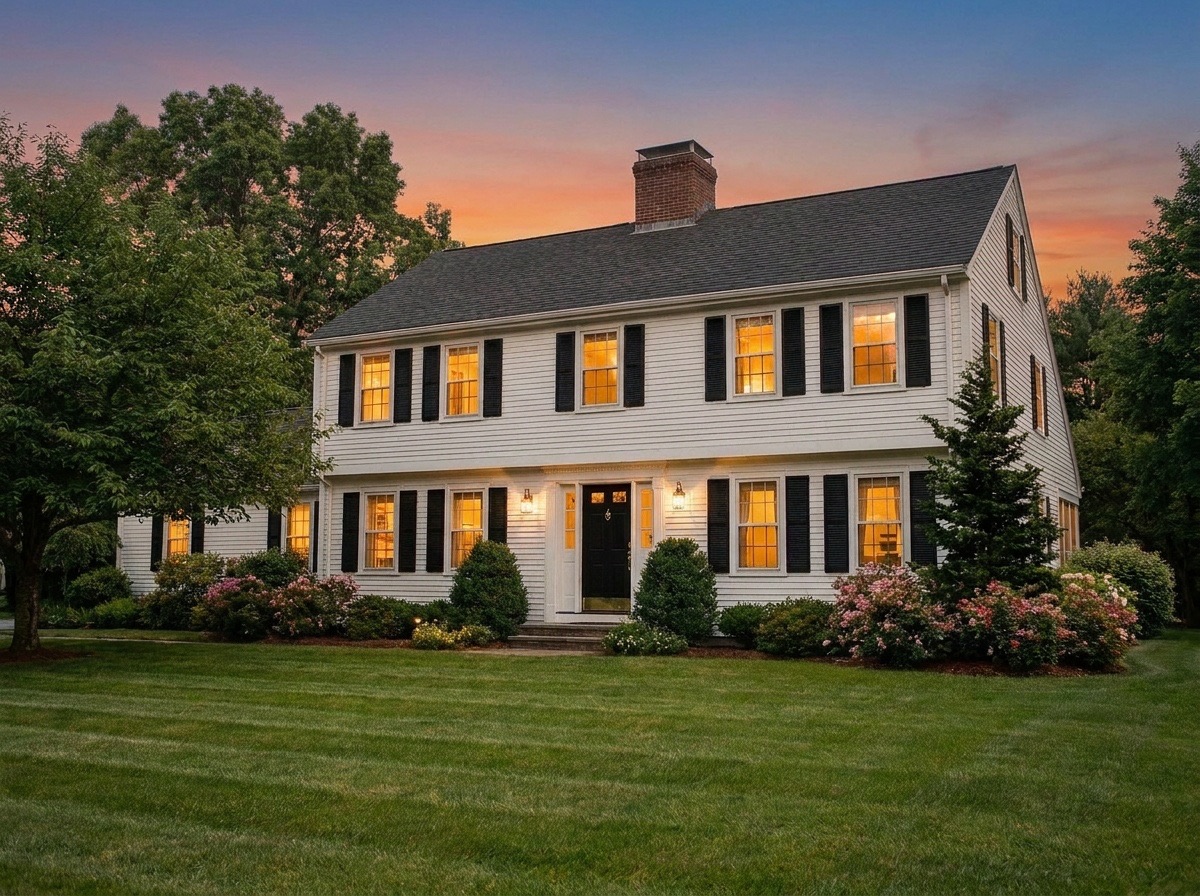 PhotoVideo frame
Exterior photo with a right pan
Check rooflines and the edges revealed by the camera movement.
Settings: Pan right
Use this exampleCreate an AI real estate video from a single listing photo. Choose a slow push-in, pan or pull-back to generate a 5-second clip for social posts and listing teasers. Results take about two minutes and require a signed-in account with credits. This is generated camera motion, not footage captured inside the property or a connected tour between rooms.
How it works
- 1
Upload a listing photo
Pick one wide, well-lit photo of a room or exterior. The clip is built from this single image.
- 2
Choose a camera move
Select slow push-in, pan right, pan left or pull back, depending on the shape of the room.
- 3
Generate the clip
The tool creates a 5-second video with the camera move you chose. It takes about two minutes, so you can leave the page open while it works.
- 4
Watch, review and download
Play the clip all the way through, check lines and details against the photo, then download it for social or your listing.
What the real estate photo to video tool does
You give the tool one photo and one camera move. It creates a 5-second clip in which the camera drifts slowly through the scene. The model is told to keep the scene static, with no people, and to leave objects and architecture unchanged, with natural lighting.
There are four camera moves to choose from:
- Slow push-in: the camera moves gently toward the center of the room.
- Pan right: the camera turns slowly to the right.
- Pan left: the camera turns slowly to the left.
- Pull back: the camera simulates moving backward; newly revealed areas may be invented.
Who uses AI real estate video clips?
An AI real estate video adds motion to an existing photo for a short teaser. It can complement a photo gallery when you do not have filmed footage; engagement still depends on the image, audience and post.
- Agents posting "just listed" or "coming soon" teasers on social media.
- Marketers building short ads or carousel videos from existing listing photos.
- Short-term rental hosts adding motion to a listing gallery or social profile.
- Photographers offering a small video add-on from photos they already delivered.
How to make a listing video from several photos
For a three-shot listing video, start with the exterior, cut to the living room, then finish on one distinctive detail. Generate one five-second clip per photo here. In your video editor or real estate video maker, trim the clips, arrange them in order and add captions or transitions. Use a cut between rooms so viewers can tell the viewpoint has changed. Do not imply that separate clips show a continuous route through the home.
Tips for better clips
Start with a clear photo: generated motion can reveal artifacts that are easy to overlook in a still image.
- Use a wide, well-lit room with a clear center of interest, such as a fireplace, a kitchen island or a large window.
- Choose push-in for rooms with depth or a pan for wide compositions. Review pull-back clips carefully because newly revealed areas may be invented.
- Avoid photos with mirrors, busy patterns, lots of small objects or people. These are where AI motion most often goes wrong.
- Straighten verticals and fix exposure before you upload. The clip keeps the framing of the photo.
- Start with a high-resolution file. A soft photo makes a soft video.
- Finished or staged rooms usually work better than empty rooms, which give the motion little to show.
Limitations and how to review a clip
Watch the whole clip, start to finish, before you post it. AI video can bend straight lines or invent details. Door frames may wobble, a cabinet may change shape, or something may appear at the edge of the frame that is not in the room.
A 5-second clip from one photo cannot show the layout, flow or size of a home. It starts from the visible photo, but motion can introduce details that the source does not show. If a clip looks wrong, try a different camera move or a different photo. Do not post a clip that changes the room.
Disclosure: this is not a walkthrough
Do not present an AI clip as a real walkthrough or video tour. Buyers may assume a video shows the property exactly as it is, and generated motion can add or change small details.
A clear caption helps, for example: "AI-generated motion: this clip was created from a still photo and is not a real walkthrough." Many MLSs and brokerages have rules about altered or AI-generated media, so check your local rules before you use clips in a listing.
Frequently asked questions
How long is each video?
Each clip is 5 seconds long, using one photo and one camera move. Join separate clips in your own editor for a longer sequence.
Can it make a full house tour?
No. It animates a single photo with a gentle camera move. It does not move between rooms or show the layout, so it should not be used or presented as a walkthrough.
Which camera move should I pick?
Slow push-in suits most rooms with depth. Pan left or pan right works well for wide rooms and exteriors. Pull back helps when the photo is tightly framed. If one move looks odd, try another.
Why do some lines bend or details change?
The motion is generated by AI, which can warp straight edges or invent small details, especially around mirrors, busy patterns and the edges of the frame. Always watch the whole clip and discard any that change the room.
How long does it take and how many credits does it use?
A clip takes about two minutes. Each video uses 3 credits. Videos need a free account; the 3 welcome credits cover one 5-second video.
Do I need to disclose that a clip is AI-generated?
It is good practice, and many MLSs and brokerages require disclosure of altered or AI-generated media. Check your local rules and add a short caption saying the clip was created from a still photo.
Related tools
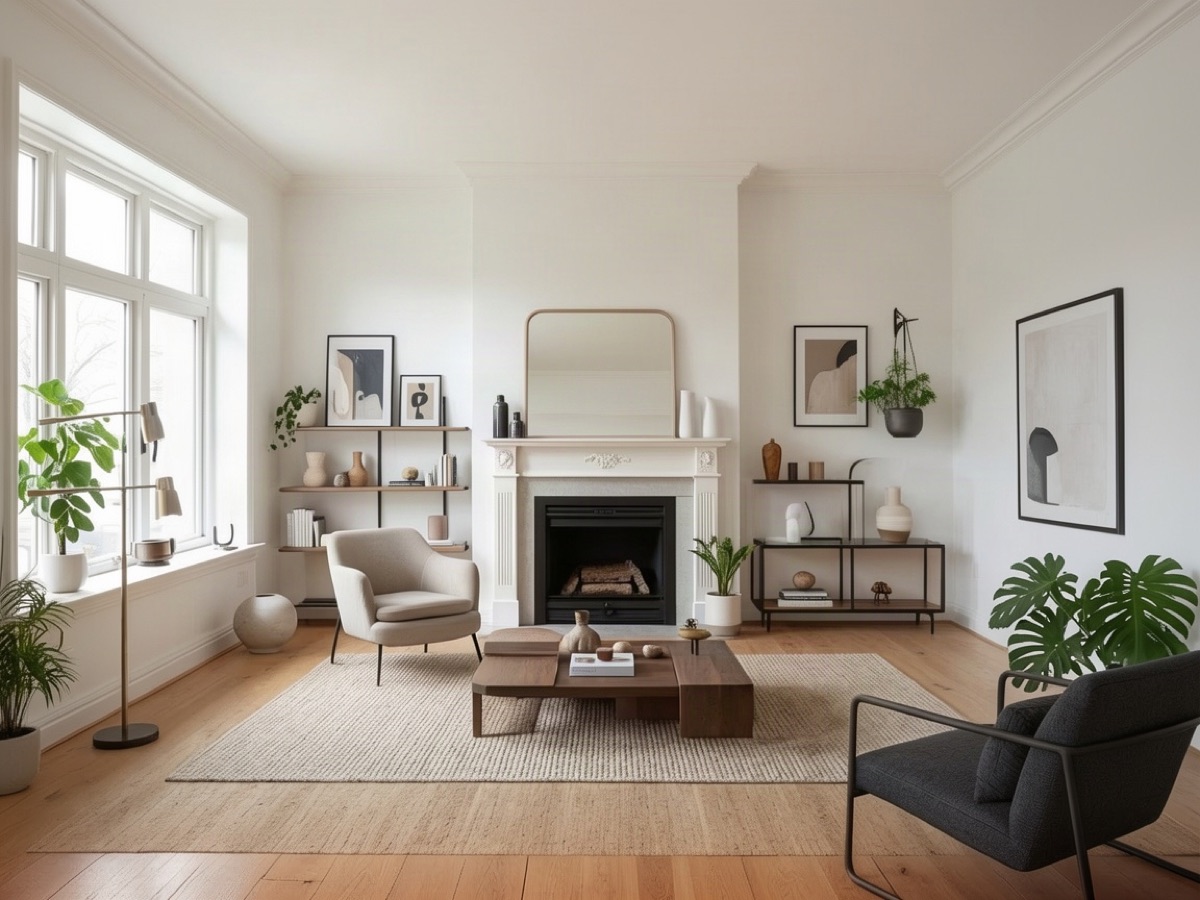
Virtual Staging
Turn empty rooms into furnished, buyer-ready listing photos.
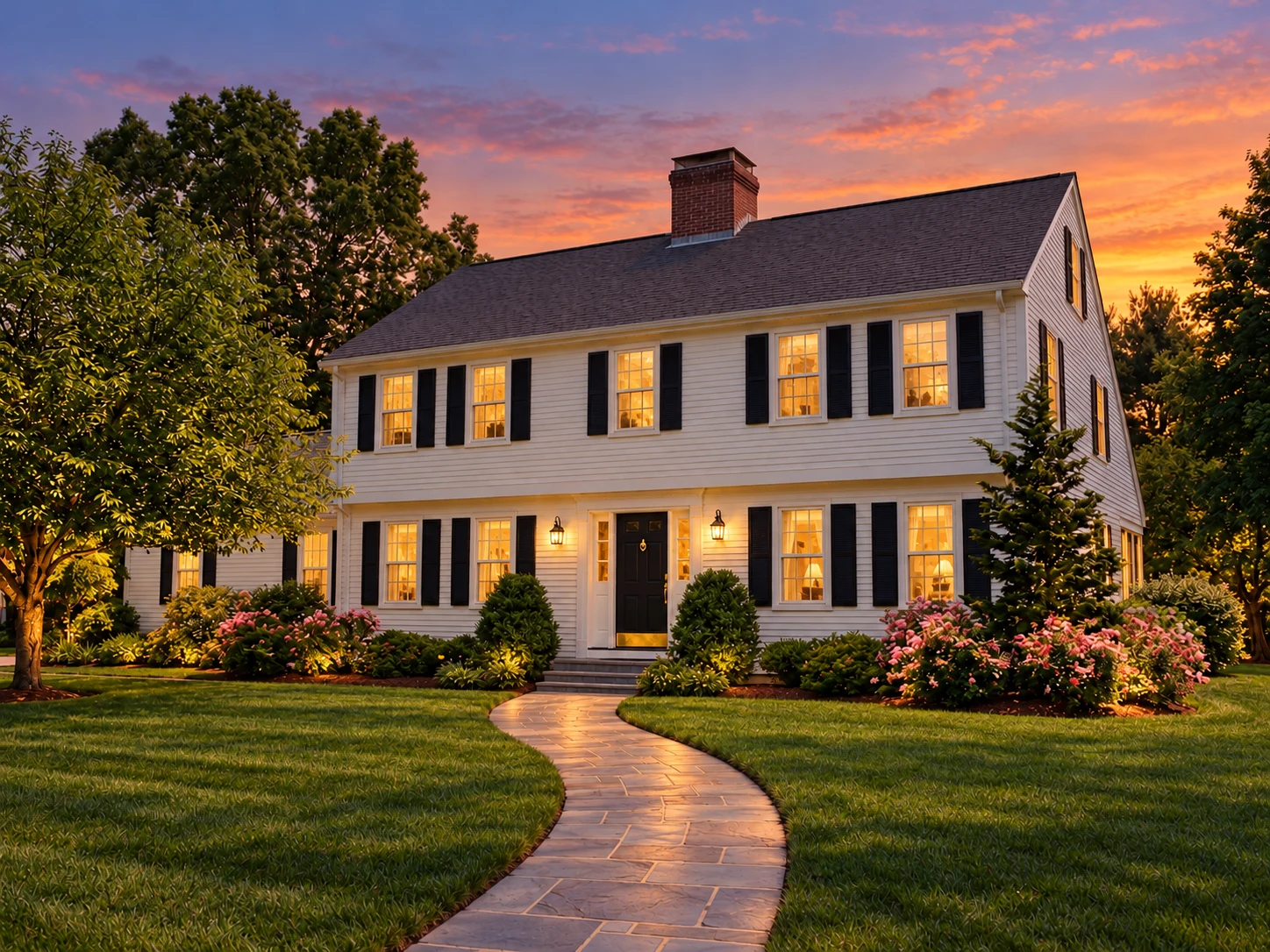
Day to Dusk
Turn a midday exterior into a glowing twilight hero shot.
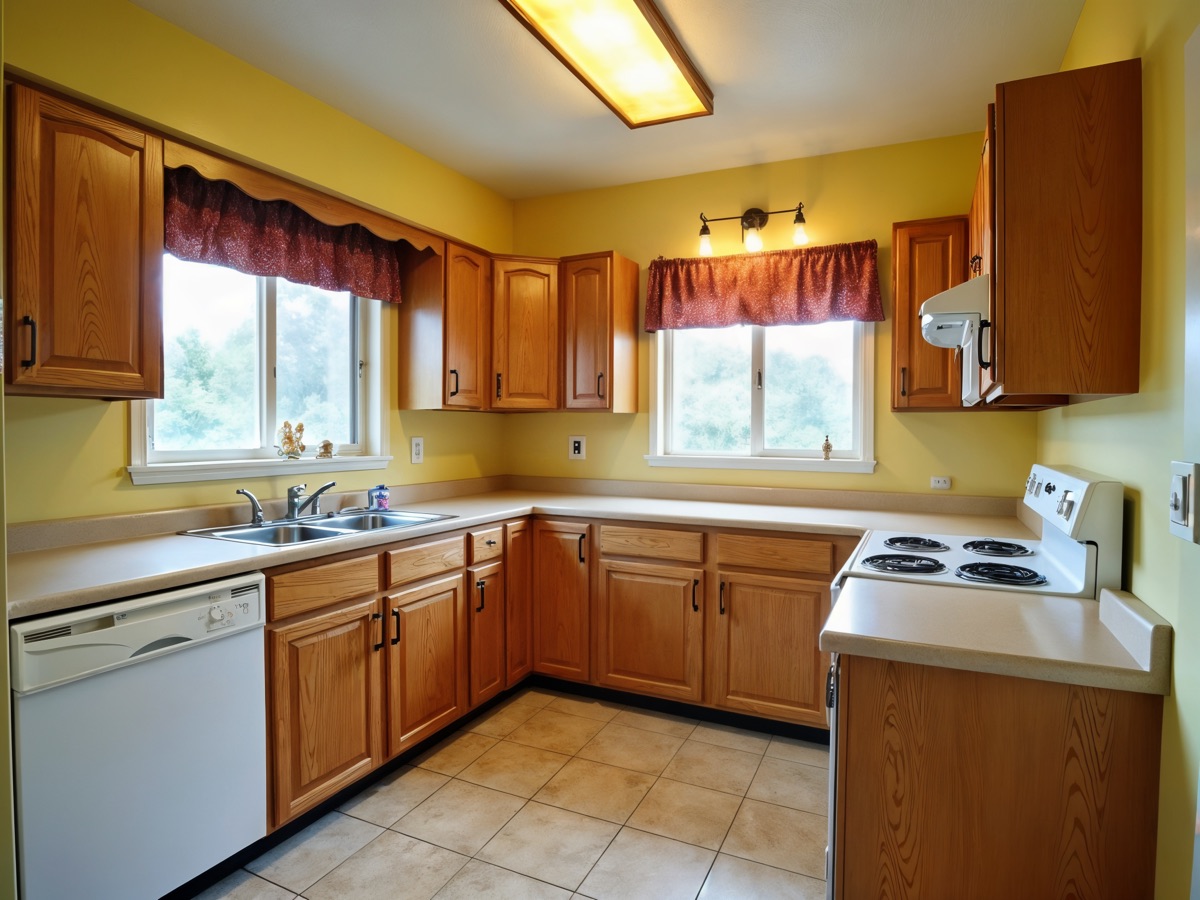
Photo Enhance & Upscale
Upscale and sharpen listing photos to print-ready resolution.
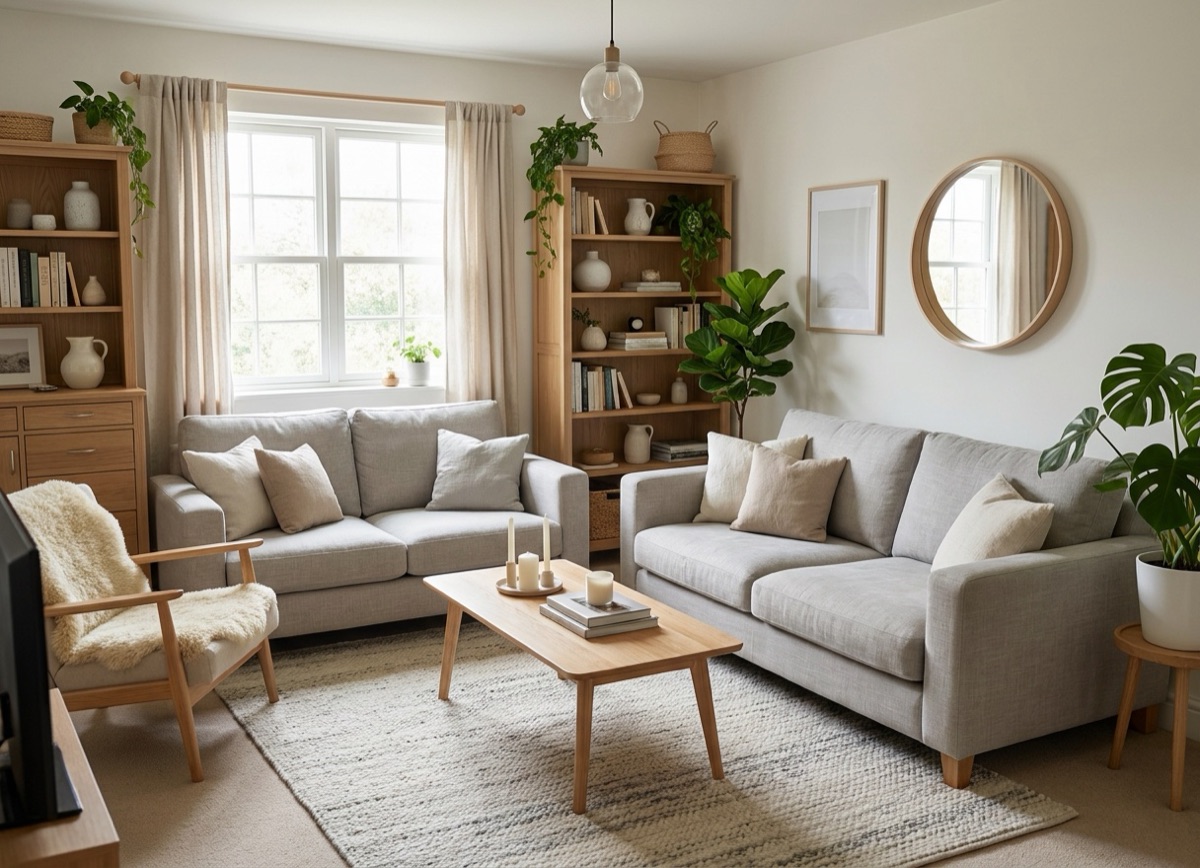
AI Room Redesign
Upload a photo of your room and see it redesigned in a new style.