
AI Virtual Staging Software
Upload a photo of an empty room, pick a style, and get a furnished version in about a minute. Preview added furniture and decor, then check the result against your original.
Additional requests (optional)
Usually ~45s. Sign in for 3 welcome credits. Credits per result: 1.
View credit packs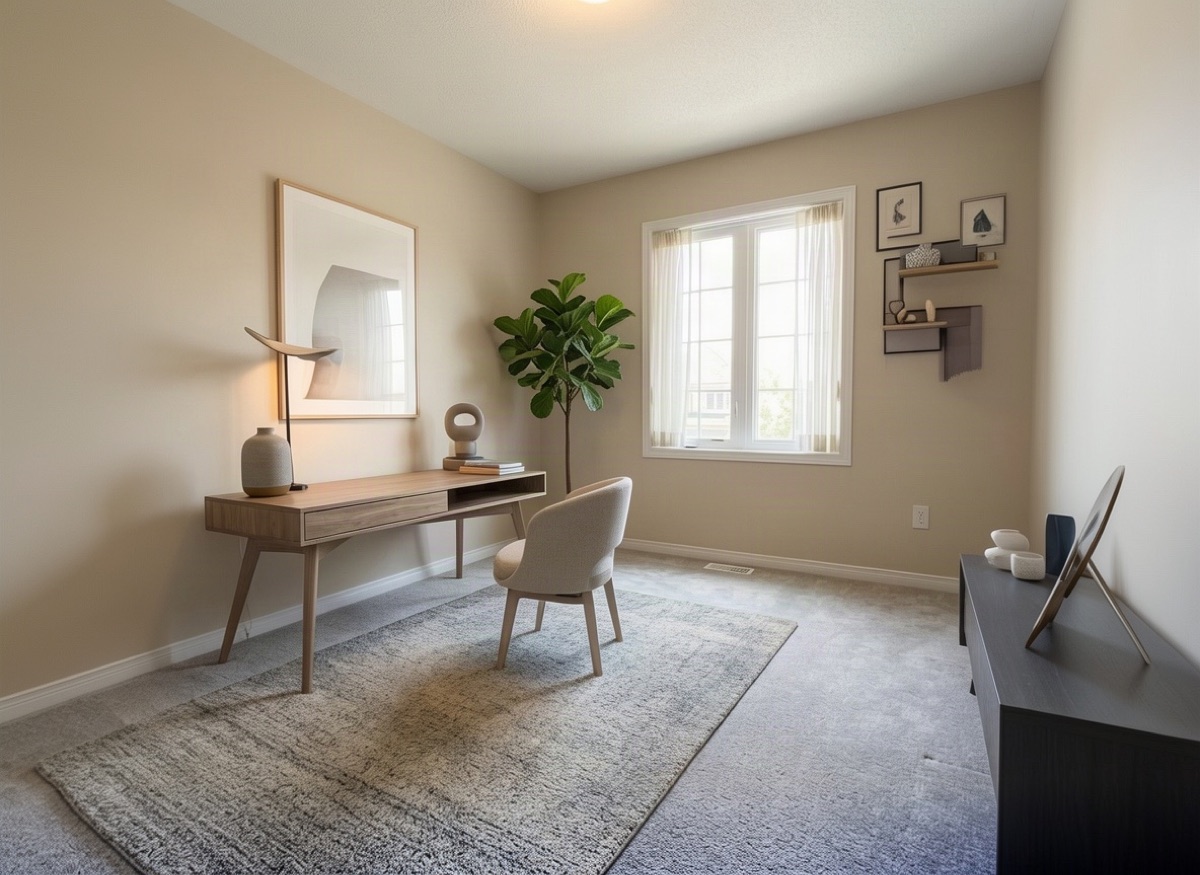
Best for: Agents, photographers, landlords, sellers
More Virtual Staging examples
Drag each slider to compare. These are AI-generated demo scenes, not customer properties. Review the changes and settings before trying your own photo.
 BeforeAfter
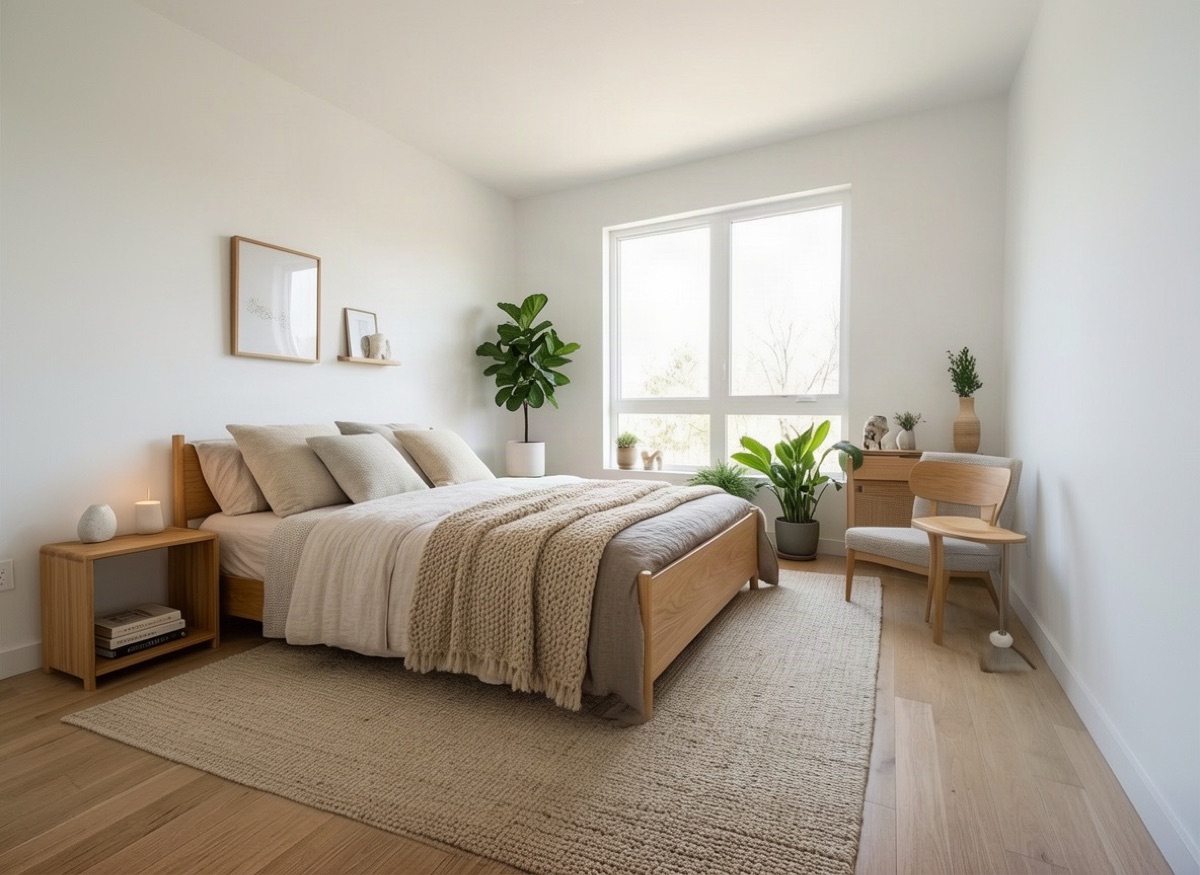
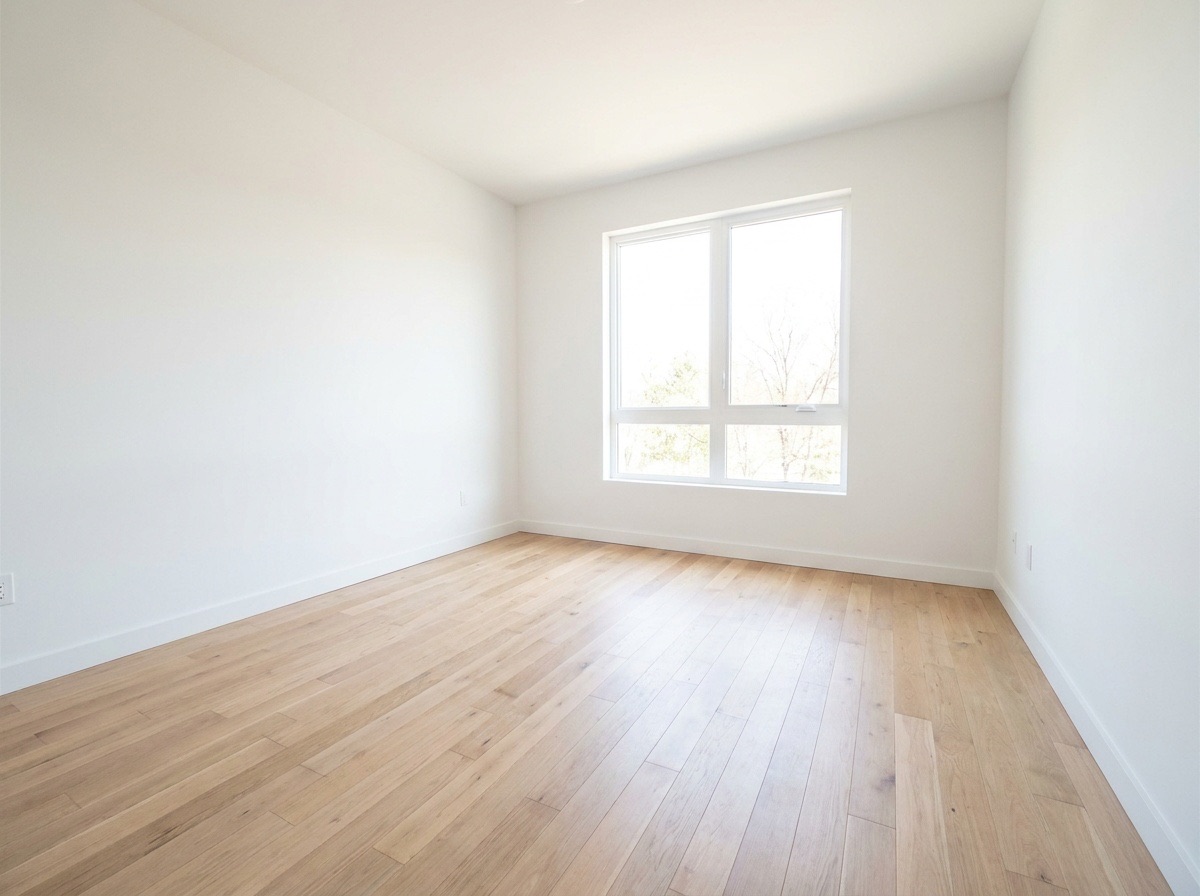
Scandinavian bedroom staging
Compare the bed footprint with the window and doorway.
Settings: Scandinavian · Bedroom
Use this example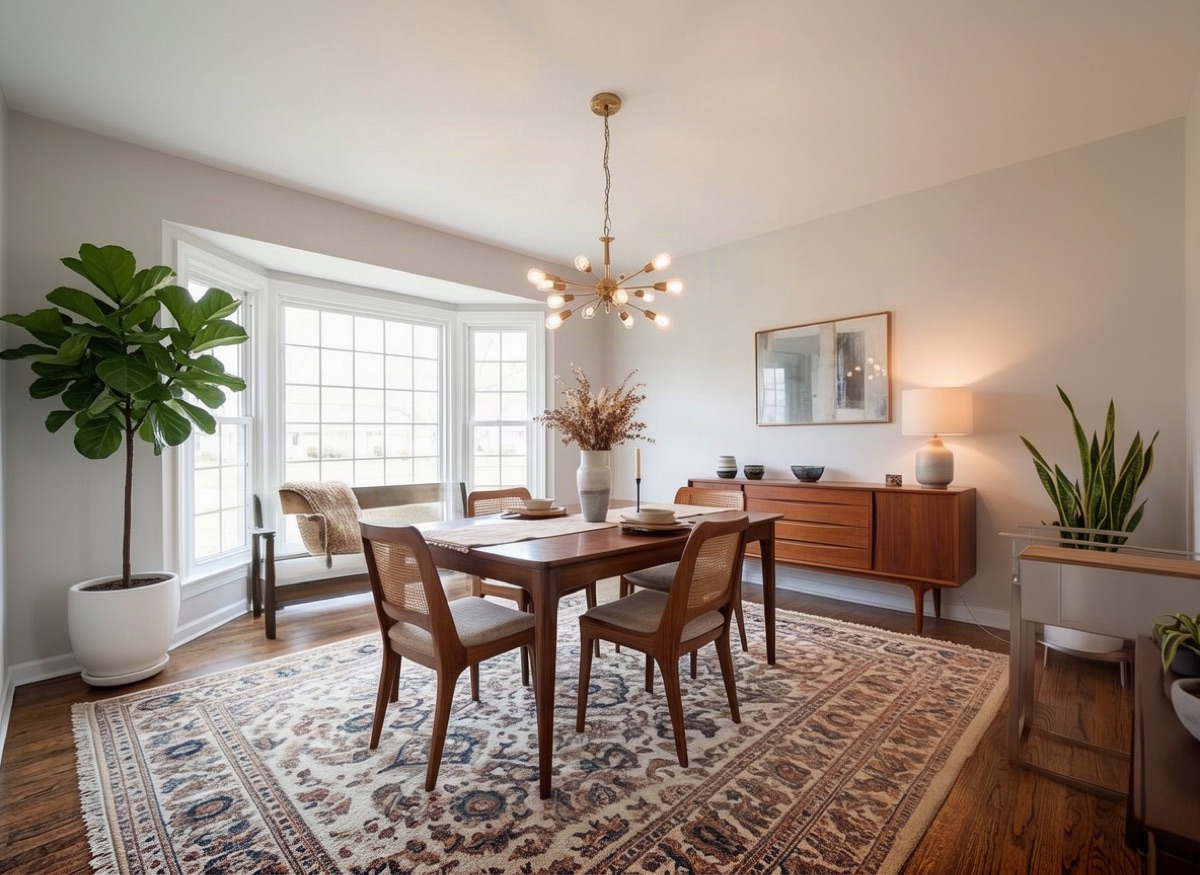
 BeforeAfter
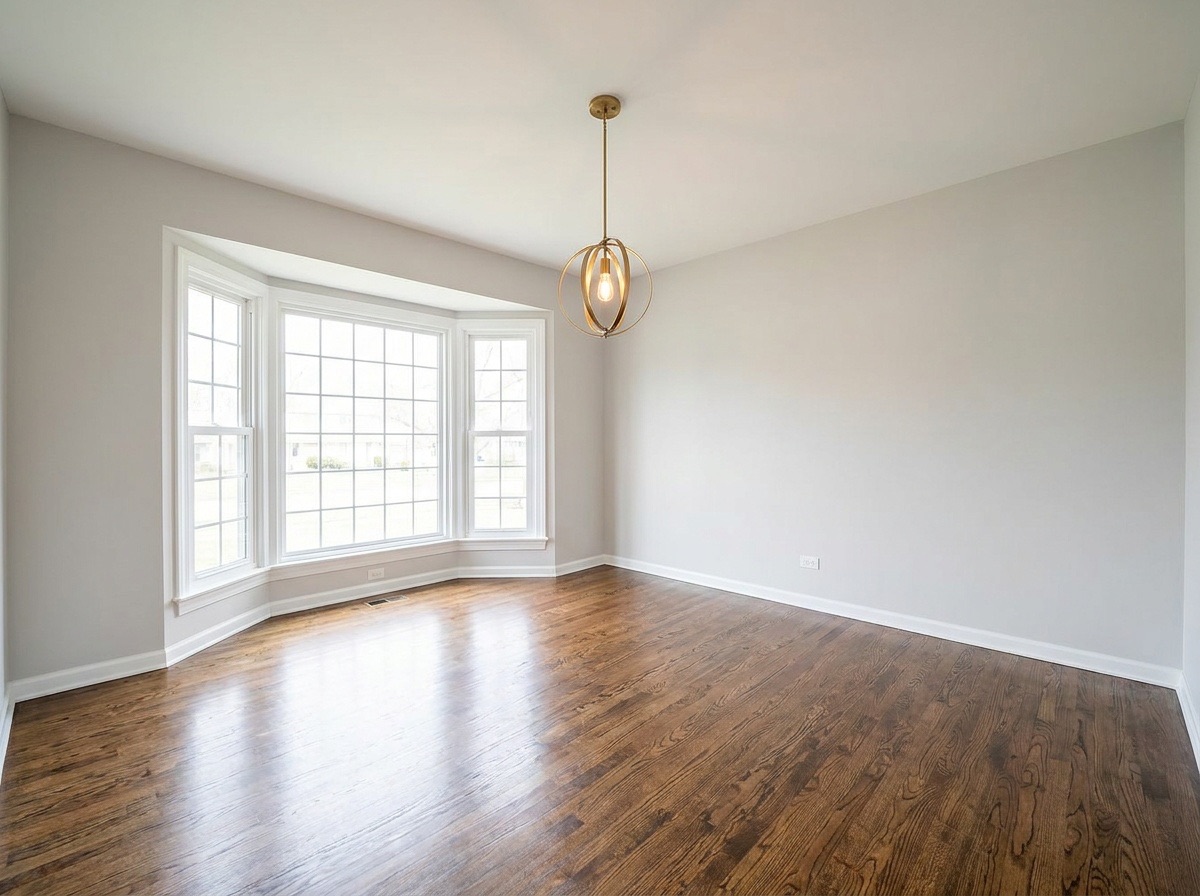
Mid-century dining room staging
Inspect chair spacing and the table size against the bay window.
Settings: Mid-century · Dining room
Use this example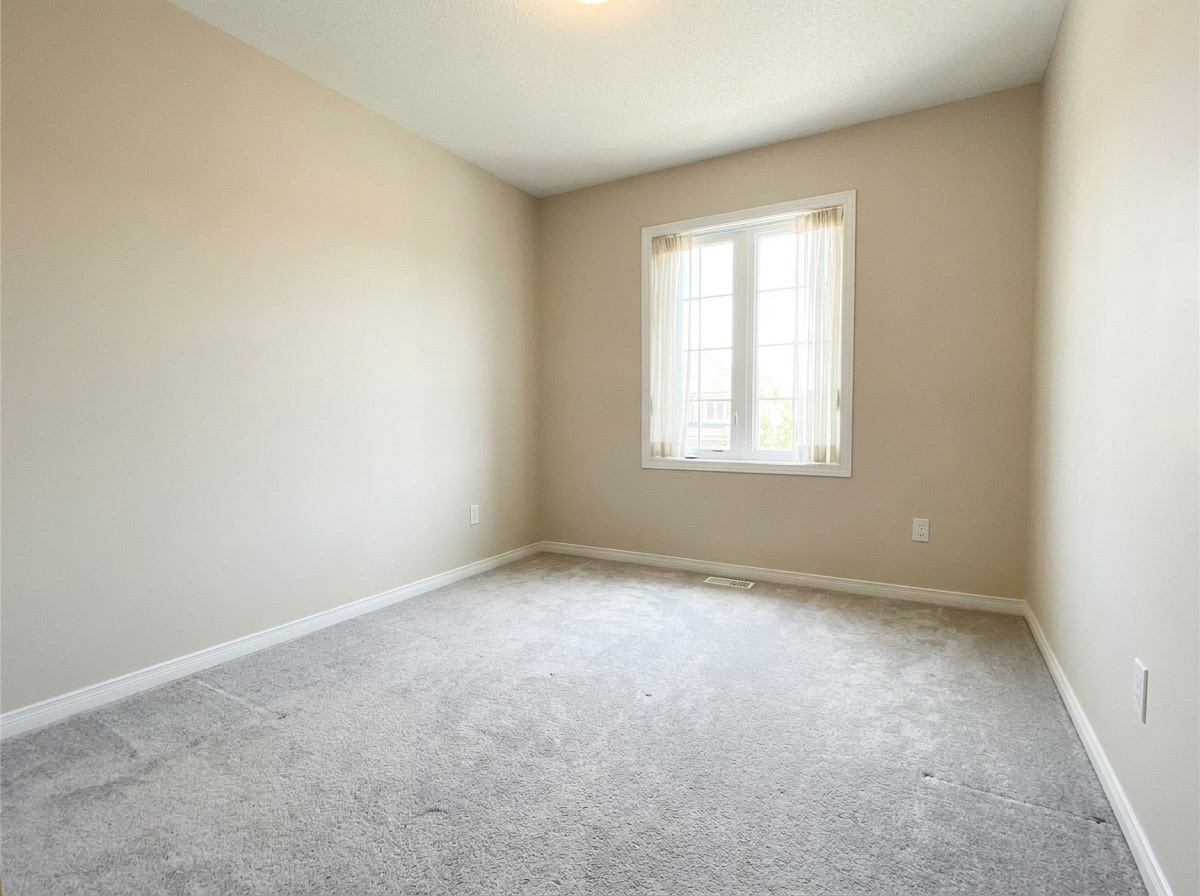 BeforeAfter
Modern home office staging
Check the desk placement and remaining walking space.
Settings: Modern · Home office
Use this exampleReSnapHome is virtual staging software for turning empty room photos into furnished concepts. Upload a clear image, choose a room type and one of six styles, and preview furniture and decor in about 45 seconds. The model is instructed to preserve the architecture, but every result needs review. Use the comparison slider to check the room before downloading a listing image.
How it works
- 1
Upload an empty room
Add a clear JPEG or PNG of an empty room. Wide, level shots with good light work best.
- 2
Choose a style and room
Pick one of six styles and the room type, or leave the room on Other / auto.
- 3
Generate
The tool furnishes the room in about 45 seconds. Each result uses 1 credit.
- 4
Review and download
Compare it with the original, check walls, windows and scale, then download the staged photo.
How virtual staging software furnishes a room
You upload one photo of an empty room. The tool reads the space and places furniture, rugs, lighting and decor that match the style you chose. It is told to keep the architecture the same: walls, windows, doors, ceiling, floors and the camera angle. The intended result is a furnished version of your room; compare the actual output for unwanted changes.
Good AI furniture placement means pieces sit on the floor, face sensible directions and leave walkways open. A living room gets a sofa, a coffee table and a rug. A bedroom gets a bed, nightstands and soft lighting. A home office gets a desk and a chair. You choose the room type, or leave it on Other / auto and let the tool decide.
- Styles: Modern, Scandinavian, Modern farmhouse, Mid-century, Coastal, Luxury
- Rooms: Living room, Bedroom, Dining room, Home office, Other / auto
- Output: one staged JPEG per run, ready to download
Who uses virtual staging software
Listing agents use it on vacant homes, so the photos show how each room can be used. Real estate photographers offer it as an add-on to a shoot. Landlords and property managers stage empty rentals between tenants. Sellers who have already moved out use it to make their listing look lived-in without renting furniture.
It also helps with odd rooms. A small spare room can be shown as a home office. A long open space can be shown with a clear dining area. Staging answers the question buyers ask most: what would I do with this room?
Compare bedroom, dining room and home office staging
The examples show three different jobs for virtual staging software. In the bedroom, compare bed placement against the window and doorway. In the dining room, inspect space around the table and chairs. In the home office, check desk size against the available floor. These are generated furnishings, not measured furniture plans. Choose a useful arrangement rather than simply the most decorated result.
Tips for better staged photos
The quality of the result depends on the photo you start with. A clean, well-lit shot of a truly empty room gives the best furniture placement.
- Start with an empty room. Leftover boxes or a lone chair can confuse the layout. Clear them first with the Declutter tool if needed.
- Shoot wide and level, from a corner, at about chest height. Keep vertical lines straight.
- Use even, natural light. Turn on the room lights and avoid deep shadows or blown-out windows.
- Show the floor. The tool needs to see open floor to place furniture at a believable scale.
- Pick the right room type. A bedroom photo labeled as a dining room will look wrong.
- Try two or three styles. Modern and Scandinavian suit most listings. Luxury fits high-end homes. Coastal fits beach and lake properties.
Limits and what to check before you publish
AI staging is fast, but it is not perfect. Sometimes a piece of furniture is too large for the room, or a rug runs under a door. Now and then the model may shift a window frame or a vent. These errors are easy to miss in a thumbnail.
Before you publish, compare the staged photo with the original. Check that walls, windows, doors, stairs and built-ins are unchanged. Check that furniture scale looks right next to doors and windows. If something is off, run it again or try a different style. Do not publish a photo that changes the home itself.
Disclosure and honest marketing
Virtual staging changes what a room appears to contain, so buyers should know it was done. Many MLSs and brokerages require disclosure of virtually staged photos. Check your local rules before you list.
A simple caption works well: "Virtually staged: furniture and decor in this photo were digitally added. Original photo available on request." Keep the unstaged originals and consider showing them next to the staged versions. Staging should help buyers picture the space, not hide its condition.
Frequently asked questions
Can I try virtual staging free?
Yes, you can sign in and receive 3 welcome credits for up to three standard photo edits. After that, each staged image uses 1 credit from your account.
Will the tool change my walls or windows?
It is told to keep walls, windows, doors, ceiling, flooring and the camera angle unchanged and only add furniture and decor. AI can still make small mistakes, so always compare the result with the original.
Which style should I choose?
Modern and Scandinavian are safe choices for most listings. Modern farmhouse suits suburban and rural homes. Mid-century fits homes with that era of architecture. Coastal fits beach and lake homes. Luxury suits high-end properties.
Can I stage a room that still has furniture in it?
Staging works best on empty rooms. Run the photo through the Declutter tool with the All furniture & decor mode first, then stage the empty result. For restyling a furnished room, use AI Room Redesign.
Do I need to disclose virtual staging?
Many MLSs and brokerages require it, and it is good practice either way. Label staged photos clearly and keep the originals. Check your local rules.
Related tools
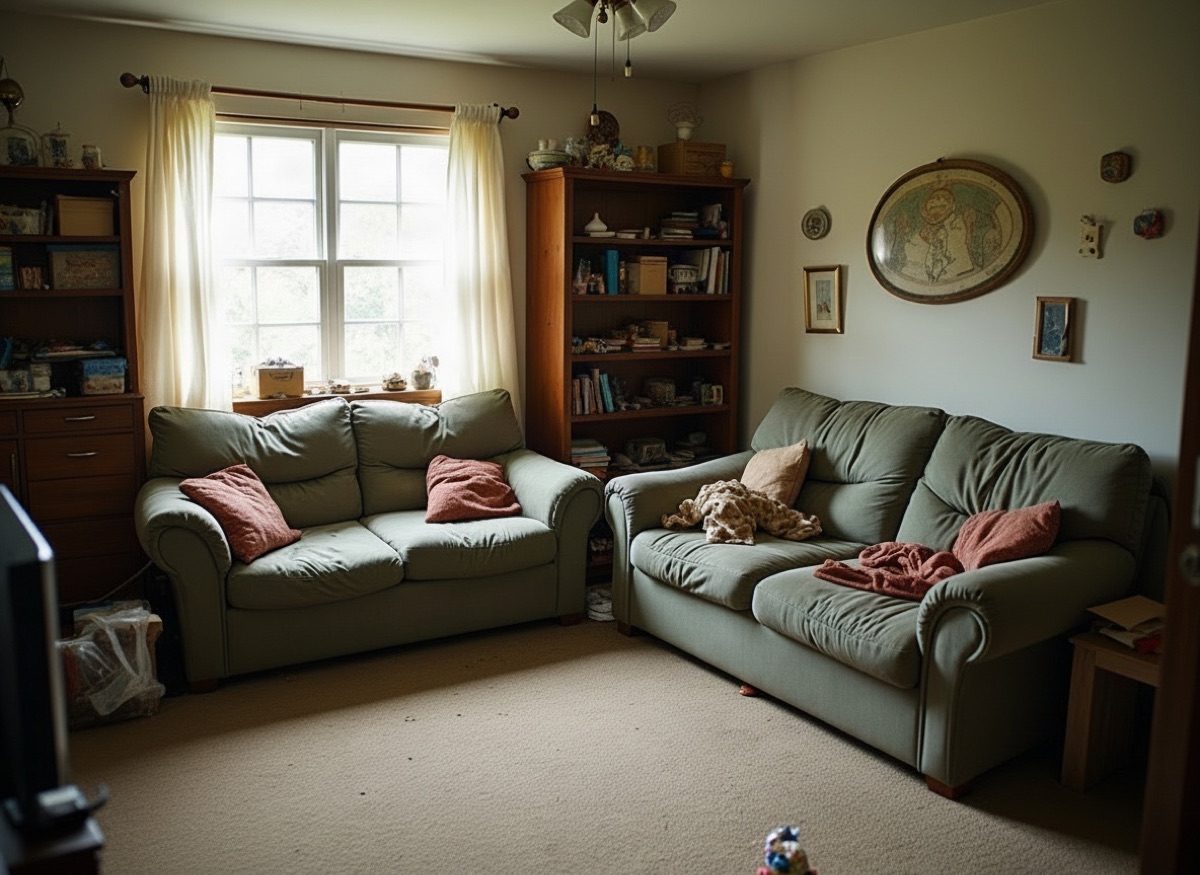
Declutter & Remove Furniture
Remove clutter, boxes and personal items, or clear a room entirely.
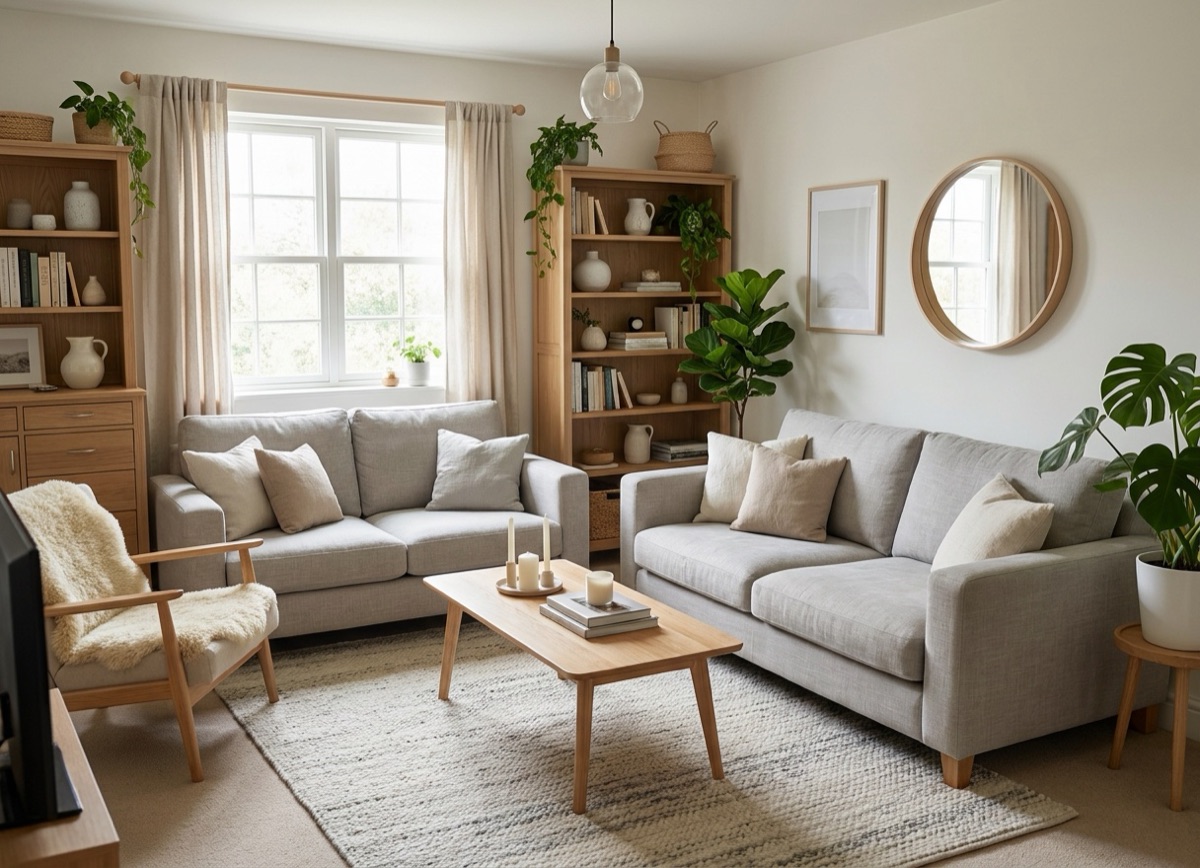
AI Room Redesign
Upload a photo of your room and see it redesigned in a new style.
Photo Enhance & Upscale
Upscale and sharpen listing photos to print-ready resolution.

Day to Dusk
Turn a midday exterior into a glowing twilight hero shot.